Vista Business SP1 = No pretty Alt+Tab?

I just upgraded my desktop here at work (which runs Vista Business) over to SP1, only to find that I no longer have the pretty Alt+Tab interface.  I loved that interface, where I pressed Alt+Tab to switch between programs, then while holding it down, was able to click on the program that I really wanted (I am notorious for having tons of windows open).

What the heck?  Was my Vista Business not supposed to have that in the first place?  Did it think my graphics card was good enough Pre-Sp1 and now it’s not?  I still have Aero Glass, so I don’t know what is going on with this.

Argh, that’s what I get for adopting things early – and in this case when it’s released to the public.

Update: A reboot seems to have refreshed my graphics driver.  It reset my resolution to very low, but after adjusting it I once again have my pretty Alt+Tabs.  Note that this reboot took place after it said the Installation as complete (and already rebooted my system).

Update2: This seems to be rooted within how windows switches back and forth between Remote Desktop and how Windows switches between Windows Basic and Areo.  It seems when I just do a disconnect from Remote Desktop, Vista stays in the Basic form until the next reboot (I haven’t tried the logout yet).  This is better than RD on my home computer, which simply goes to a blank screen that I need to lock my computer and then unlock to fix.  The Remote Desktop experience has been quirky to say the least.

Countdown drawing near: 2 days

It first became months, then became weeks, then days and now hours.  It is only hours until I am eligible for my "New Every Two" discount from Verizon. 

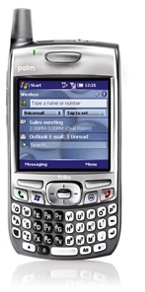
Treo700w

With that, I plan on finally relinquishing myself from my cursed Treo 700w.  I have been waiting for this day for so long.  It’s not that I’m happy to end my association with the Treo as much as I have grown to hate the phone with every bone in my body.

My association with the Treo started with the 650, with the Palm/Garnet OS.  The phone worked pretty well for the most part, but was still pretty quirky. Shortly thereafter I "upgraded" to the Treo 700w.  I put quotes around that word because while I love the high-speed EV-DO access that’s pretty much all I loved with that phone.  The call quality is miserable (and that was just the beginning).  The phone had an extremely low amount of memory, so much that running applications in parallel caused the phone to start screwing up.  I became extremely familiar with the Task Manager, shutting down virtually every application after I used it.  I had to deal with the shoddy Bluetooth ability (until an update helped that), as well as troubles pairing the device with my computer.  Any of my friends can tell you how much I’ve been frustrated with this phone, and how eager I am to be rid of it.  Besides the EV-DO the only other benefit about this phone is that it’s pretty durable, I’ve thrown in frustration so many times and it still manages to stay in one piece.

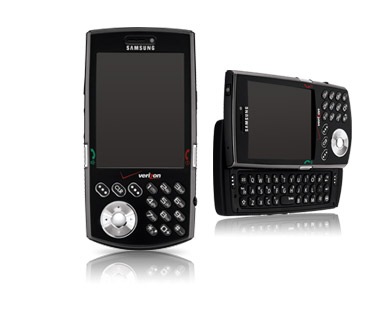
I’ve narrowed down my replacement to two different choices: the Samsung SCH-i760 and the (UTStarcom) XV6800. Both devices look great.  They’re both running Windows Mobile 6 – which isn’t the best mobile OS, but after transitioning from Palm to Windows Mobile, it’s too much effort to make another switch.  They both have EV-DO, along with the Wi-Fi option.  Both of them have a fold-out keyboard.  The XV6800 looks like an amazing, sleek device, but I am pretty concerned about the comments made about the call quality.  After my Treo experience I am extremely sensitive to having less-than-stellar call quality.  With that in mind, I’m leaning more towards the Samsung.  We’ll see how things go on Wednesday:

SamSung-SCHi760

Updated setup software list

I had meant to post this sooner, but I recently got a new desktop machine at work.  I didn’t have the login for the new machine, so I took it as an opportunity to wipe the hard drive and start off fresh. I wanted to talk a bit about my setup experience and about the software I put on the new machine.

First off I put Windows Vista Business on the machine.  I was lucky enough to get 3GB of RAM and since I’ve had a decent experience with my home desktop, I’ve decided to stick with Vista for now.

It should be noted that I am a MSDN member, which enables to me to install the Microsoft Suite of Applications & Developer tools:

  • Office 2007 (including OneNote, Project &Visio)
  • Expression Web (for Web Design & Dev)
  • Visual Studio 2008

These tools are wonderful, but I realize they may not be available to everyone.  If you’re a college student (or have a college email address) you can get office for really cheap at TheUltimateSteal.com – a Microsoft purchase program for students.  Also student developers can qualify to get Expression & Visual Studio for free at Microsoft DreamSpark.  This is a great strategy to get students acclimated to the MS applications, which means that it’ll transfer to employees demanding the tools when they enter the workplace.

The next thing I did was go to my favorite software site – FileHippo.  FileHippo is a repository for freeware – a one-stop-shop for downloads.  From here I grab the following (in no particular order):

Internet:

Apps & Utilities:

  • MS Office 2007
  • FoxIt Reader a PDF alternative to the bloated Adobe Reader
  • PDF Creator – Free PDF creating, although I am starting to try out Primo PDF
  • UltraVNC – The viewer on my work desktop, VNC installed on my home desktop
  • Burnaware – CD/DVD Burning
  • Launchy – Perfect application launcher for keyboard junkies
  • ObjectDock – “Sidebar” application launching
  • Windows Live Writer – What I use for blogging
  • MRemote – To manage multiple MS Remote Desktops/Terminal Servies, I haven’t had great results with VNC though

Scripting:

  • NotePad++ – Best general purpose editor hands-down

Photos & Multimedia:

  • MediaMonkey – Incredible media manager, especially if you have a large library (I paid for this one, but there is a free version).
  • Last.fm – Scrobble and track what I listen to (my profile)
  • VLC Media Player – For videos, DVD’s and single-file playing
  • Windows Live Photo Gallery – Easy way to manage, edit, tag and share photos (there is Flickr integration as well)
  • FastStone Image Viewer – On-the-fly image preview & browsing
  • Paint.NET – More in-depth photo editing

System Utilities:

  • Defraggler – Disk Defragmenting
  • AutoRuns – eliminate annoying startup programs
  • CCleaner – Get rid of crap, cookies and temp files
  • Unlocker – Gets you out of those “access denied” binds during deletions
  • Process Explorer – Task manager on steroids
  • Java Runtime Environment
  • Tugzip – Great alternative to Winzip, not quite WinRar, but free and open-source
  • Synctoy – to synchronize files between my work desktop and laptop, works great if you’re on the same network

Security:

  • Windows Vista Firewall works pretty well, but at home I use Comodo
  • AVG Anti-Virus (for the home computer, we use a separate solution at work)

Are there any essential tools that I’m missing?

Happy anniversary to me!

With today being March 9th, I need to pause and reflect a little bit on my 10th Anniversary at HP.  I started at HP on Monday, March 9, 1998 as a high school intern.  I was a 16-year-old Junior and started in Human Resources.  My primary role was to update a job postings web page, using state-of-the art FrontPage ’97.  I was originally slated 15-20 hours per week to complete this job.  I was able to accomplish this job pretty quickly and found other work to do.  I ended up being transferred into IT that summer and the rest was history.

My years of service technically begins at the start of my “Regular Employee” classification (in Nov of 2000), so this is an unofficial anniversary, but I wanted to commemorate my start-date.